
Export video and text testimonials
Export every testimonial in a Space as CSV, or download one testimonial as an image or video.
Export every testimonial in a Space as a CSV, or download one testimonial as an image or video file.
Use Export to CSV for the full list. Use Share or Download files for a single item.
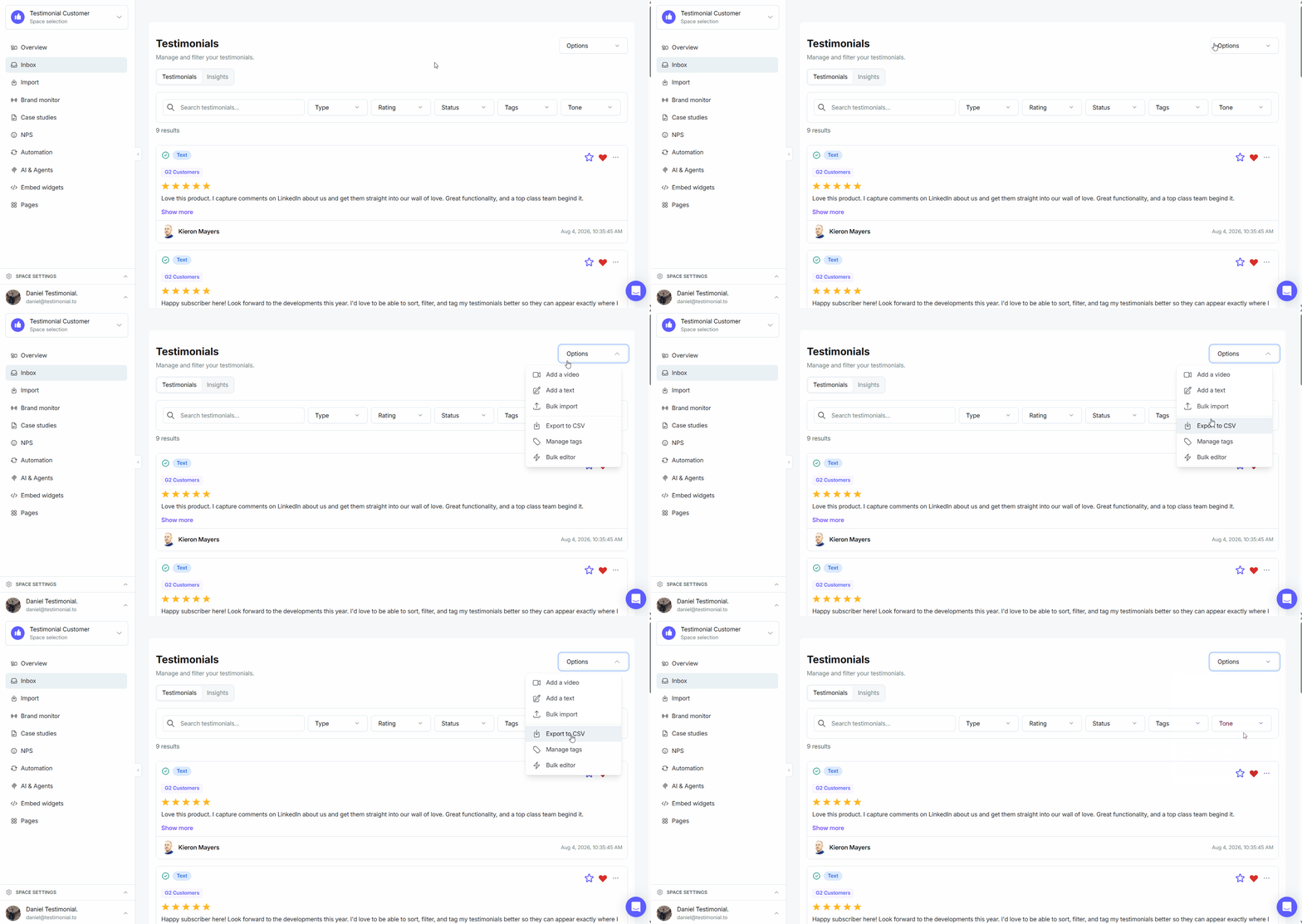
Export all as CSV
Open the Space that holds the testimonials.
In the right sidebar, open Options and click Export to CSV.
Download the CSV file.
Consent columns in the CSV
Each text and video testimonial submitted through your form keeps its own consent record. The CSV includes these consent columns alongside the existing ones (the existing columns are unchanged). The headers appear exactly as shown:
source: "Collection form", "Imported from {source}", or "Imported".
submittedAt: when the testimonial was submitted, as a date and time in UTC (ISO 8601 format).
consentGiven: true or false, or "N/A (imported)" for imported or manually added testimonials.
consentMode: the consent box setting on the form when the testimonial was submitted: required, optional, or hidden. Blank for imported testimonials and for older testimonials collected before consent records existed.
consentLanguage: the language of the consent statement shown.
consentText: the exact statement the submitter saw (links appear as the text followed by the URL in brackets), or "Consent box hidden on the form", or "Consent text unavailable".
consentTextHash: a reference code for the statement. You don't need to do anything with it.
consentRecordedAt: when consent was recorded, as a date and time in UTC (ISO 8601 format).
consentRecordStatus: one of the following, or blank for imported testimonials:
"Recorded": saved when the testimonial was submitted.
"Legacy" or "Legacy, current statement shown": an older testimonial collected before consent records existed. The second shows your Space's current statement.
"Unavailable, export again": the consent records couldn't be read during this export. Export again.
This gives you a consent audit trail for each testimonial. To change the consent statement, see Collect the user's consent.
Export one testimonial
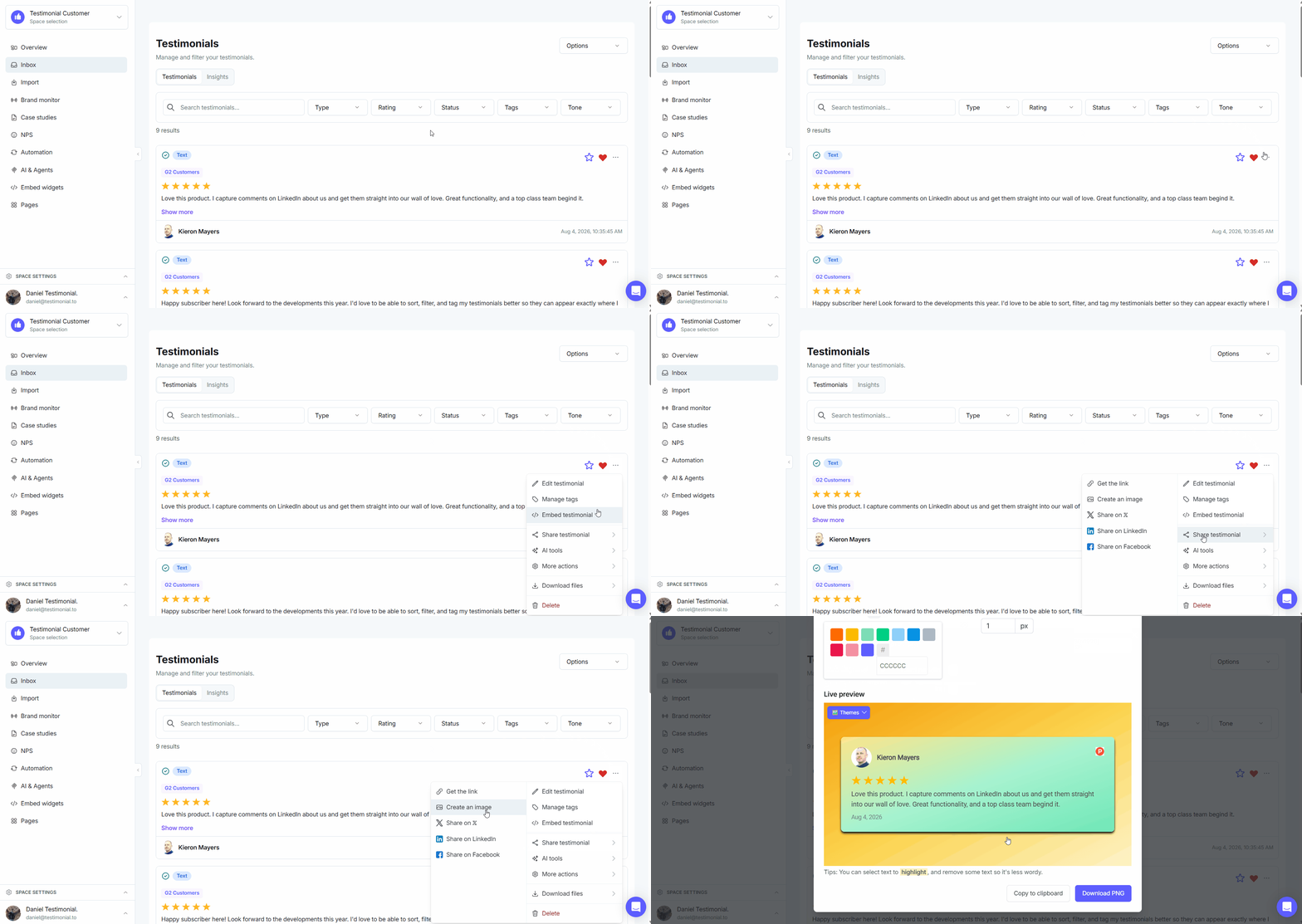
Text testimonials
Click the three-dot icon on the testimonial.
Click Share, then Create an Image.
Customize the image, then download it. See Generate images from your testimonials.
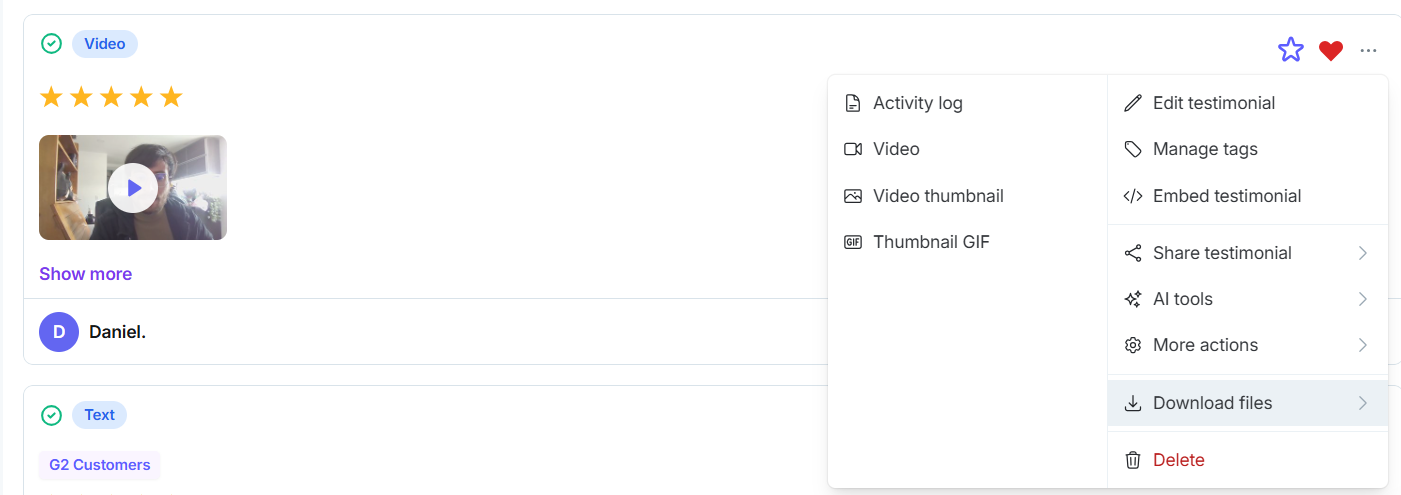
Video testimonials
Click the three-dot icon on the testimonial.
Click Download Files, then Video.
For third-party reviews, see Creating images and getting embed code for 3rd-party reviews.
For a PDF record of a single testimonial, including the consent statement the customer agreed to, see Download testimonial log.
Need help? Click Talk to us to open the support chat. If the chat doesn't load, email support@testimonial.to.