
Send a message
Email a submitter or post a public reply on a landing-page testimonial that has an email address.
You can email the person who submitted a testimonial, and you can post a public reply on testimonials collected from your landing page. Send a message only works when the testimonial has an email address.
Note: This feature needs an email on the testimonial.
 Watch on YouTube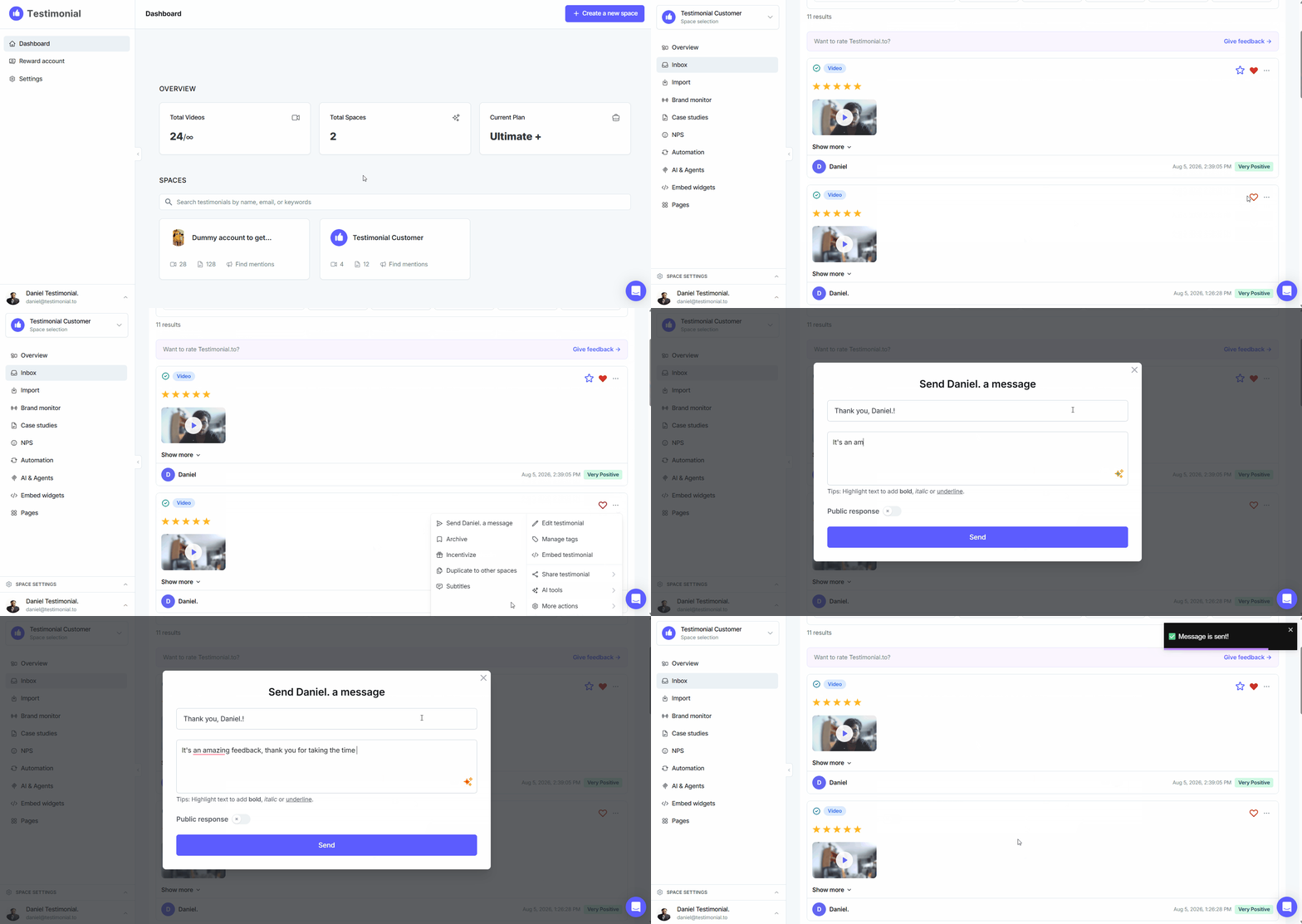
Open Send a message
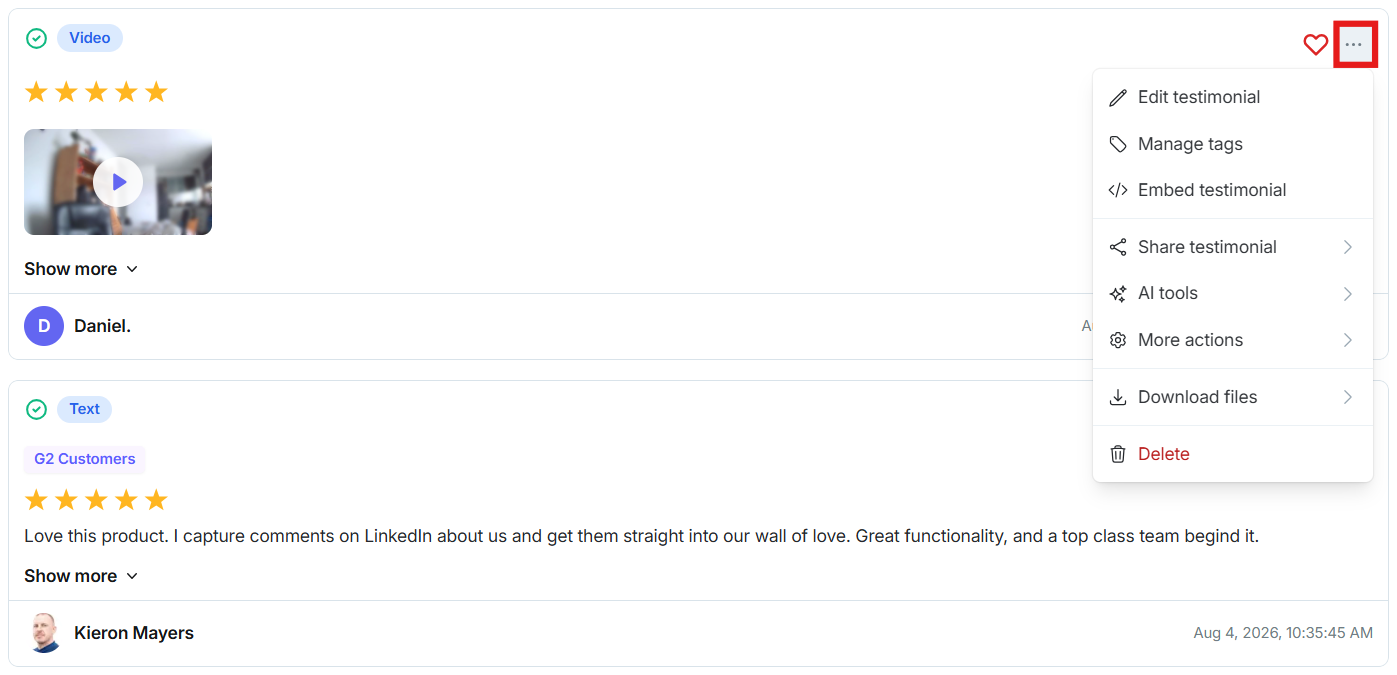
Open the testimonial and click the three-dot icon in the upper right.
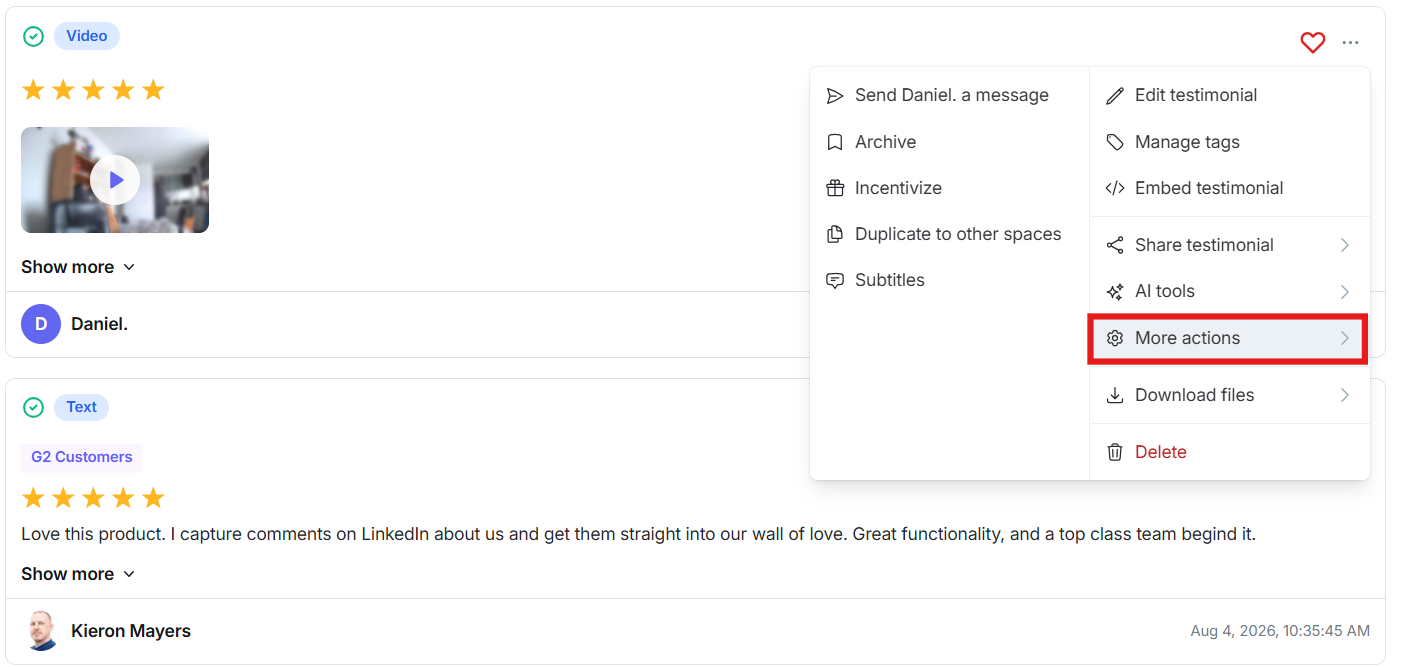
Click More actions.
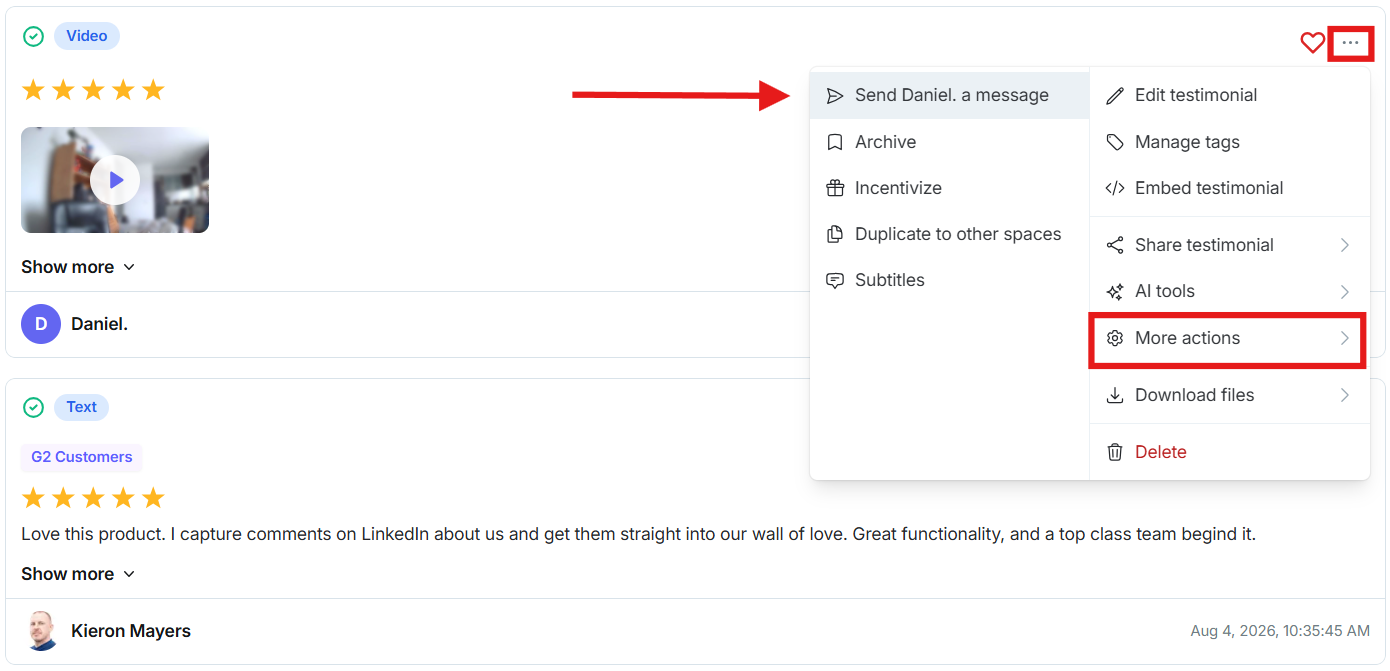
Click Send [name] a message. The label uses the submitter’s name.
Write and send
Enter a subject and message, then click Send.
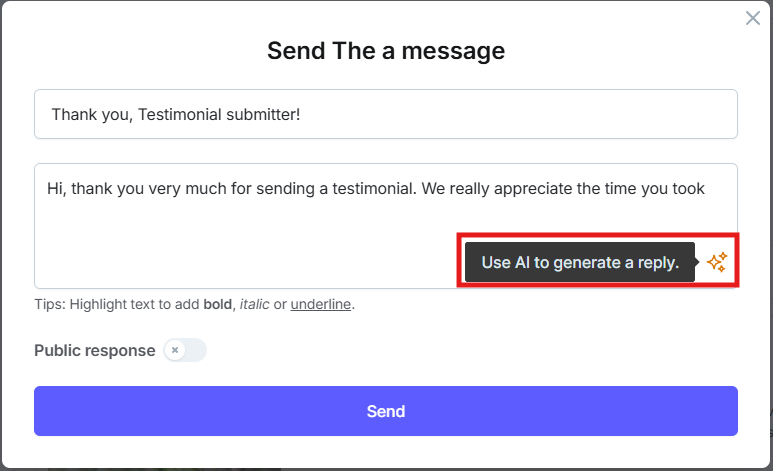
On a paid plan you can draft the reply with AI:
Click the AI icon at the bottom right of the text box.
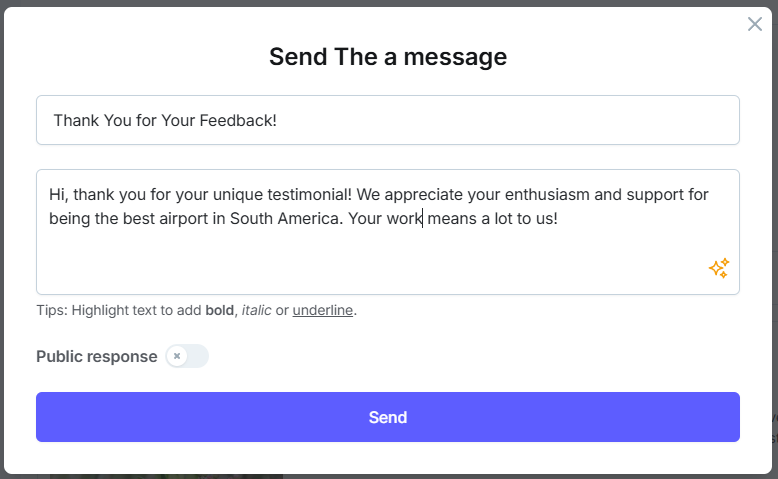
Edit the draft, then send.
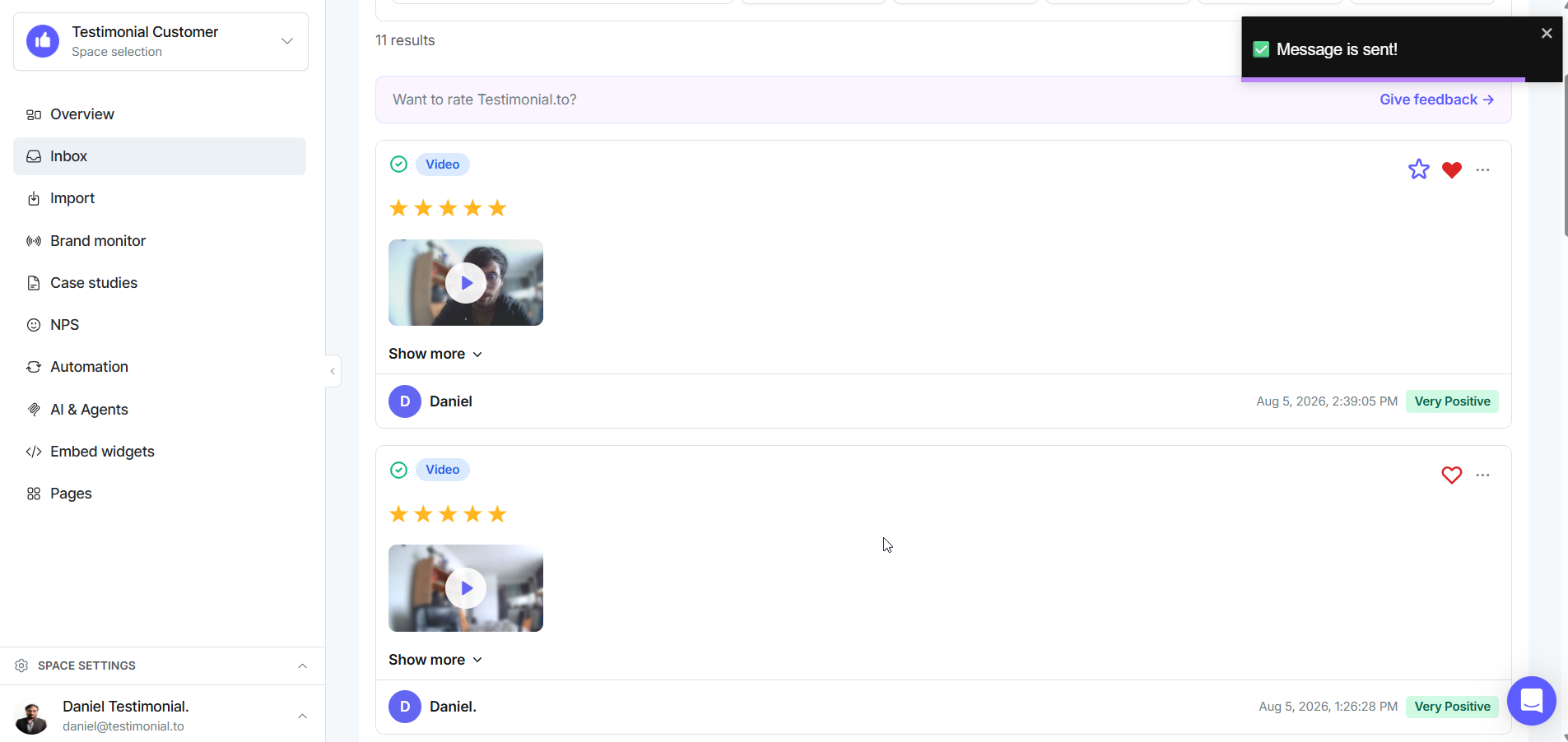
After you send, you can open the message history.
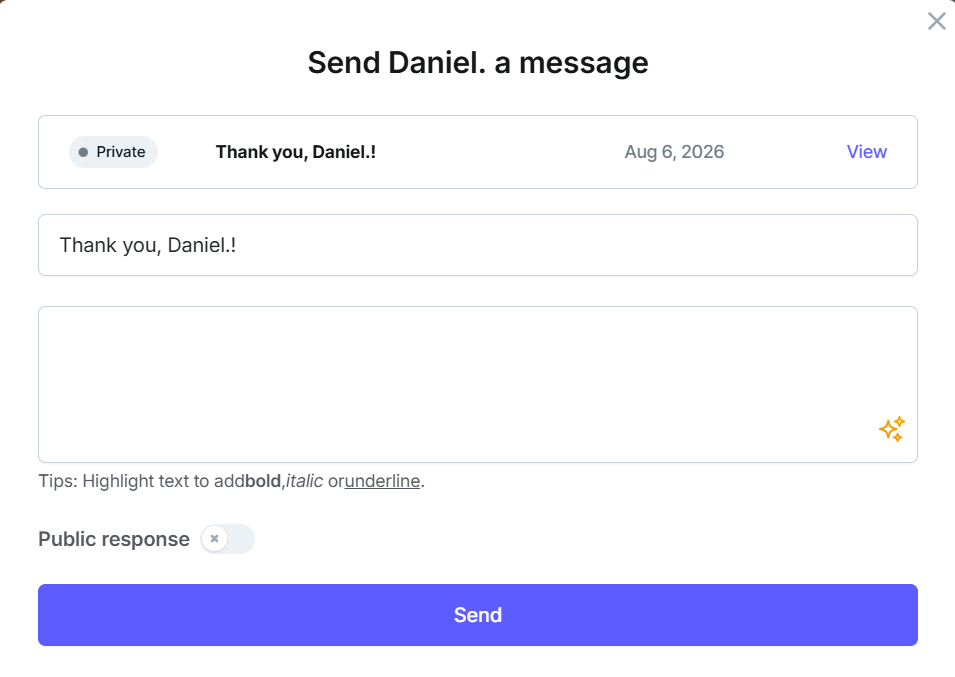
Note: The From address is notification@testimonial.to.

Create a public response
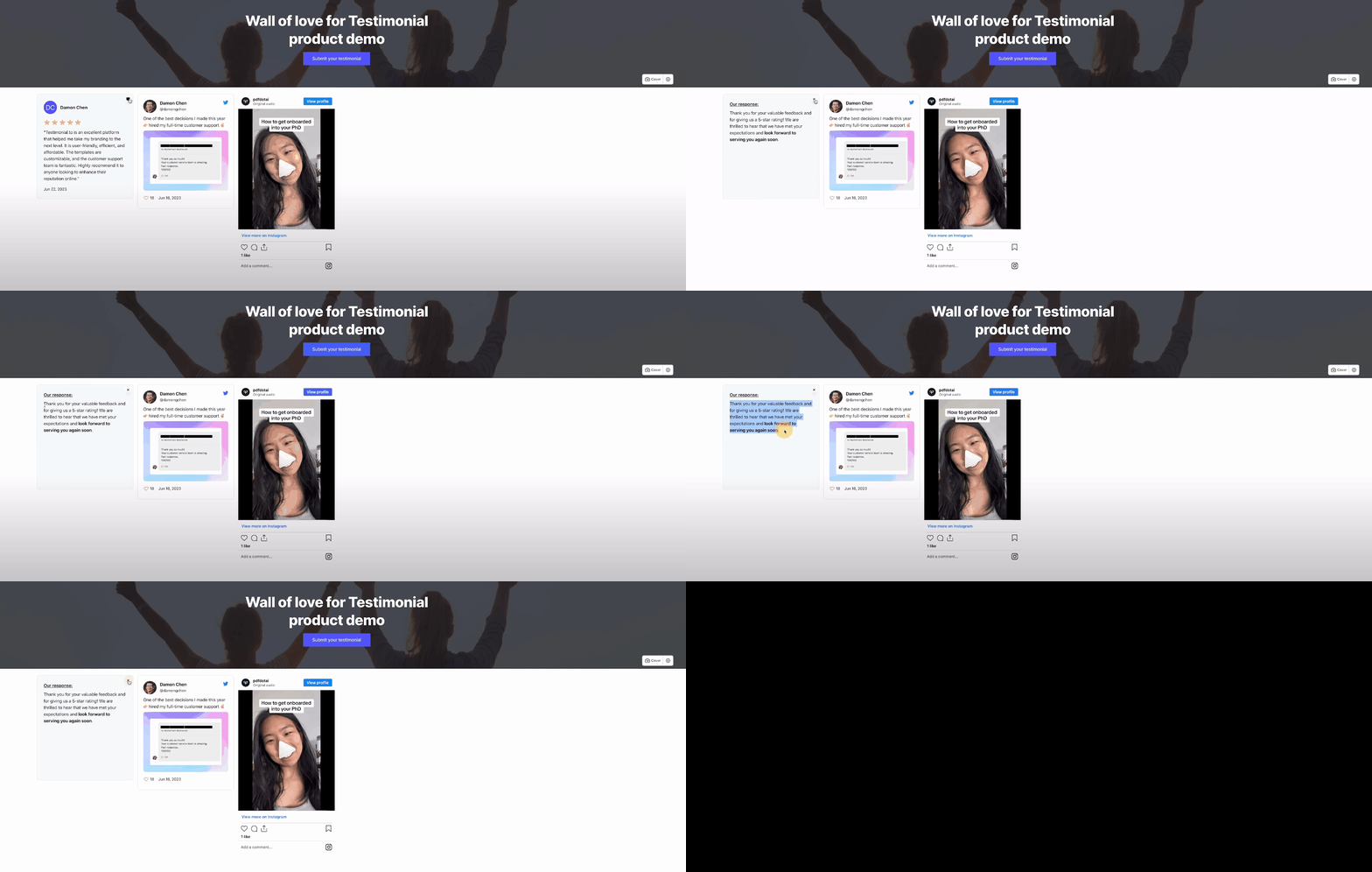
For testimonials collected from your landing page, you can publish a reply on the testimonial. Enter the subject and message, then turn on Public Response.
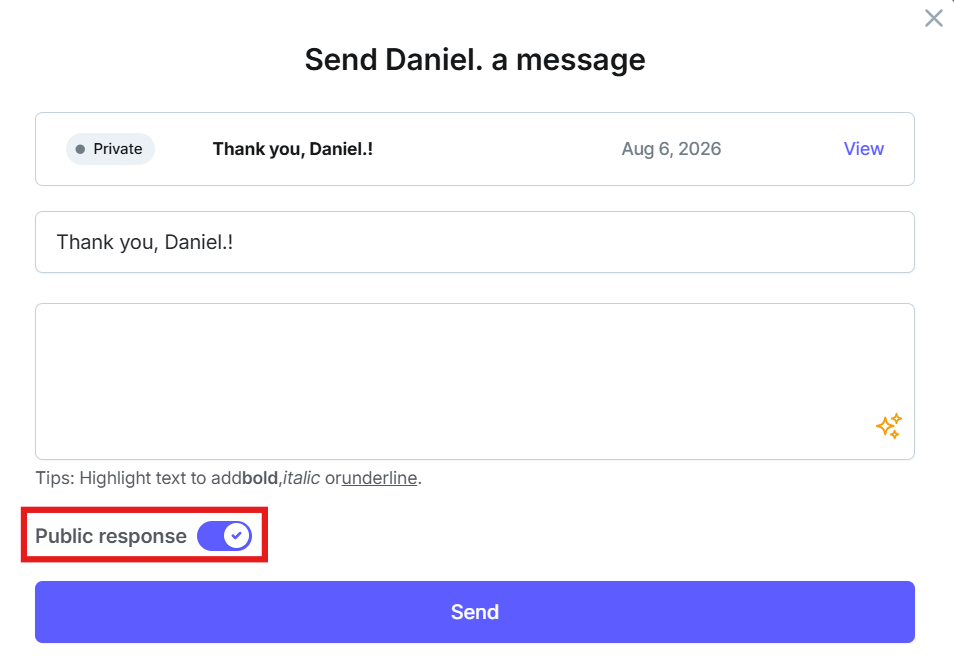
Note: Sending a new public response replaces the published one. The submitter also receives an email copy of the public response.
Example:
Need help? Click Talk to us to open the support chat. If the chat doesn't load, email support@testimonial.to.