
Generate images from your testimonials
Create a PNG image from a text testimonial and customize the card before you download it.
Create a PNG image from a text testimonial. Open the testimonial in Inbox, then choose Share → Create an Image.
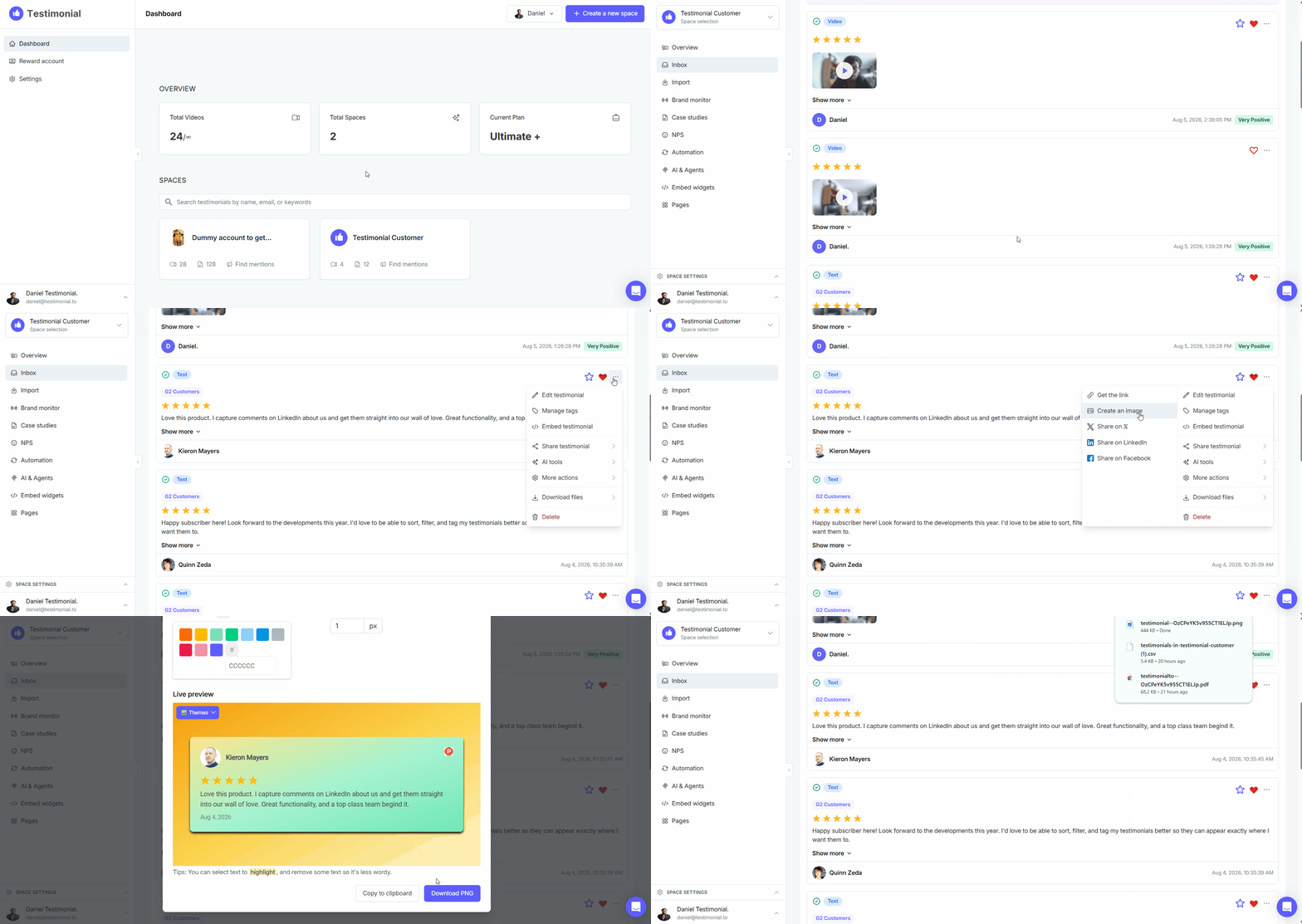
Create an image
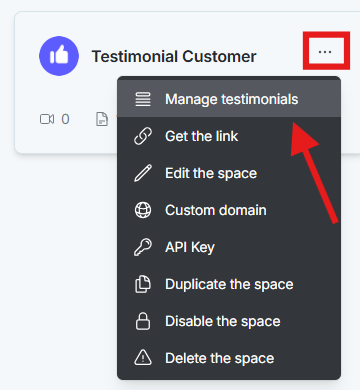
Open the Space from the dashboard.
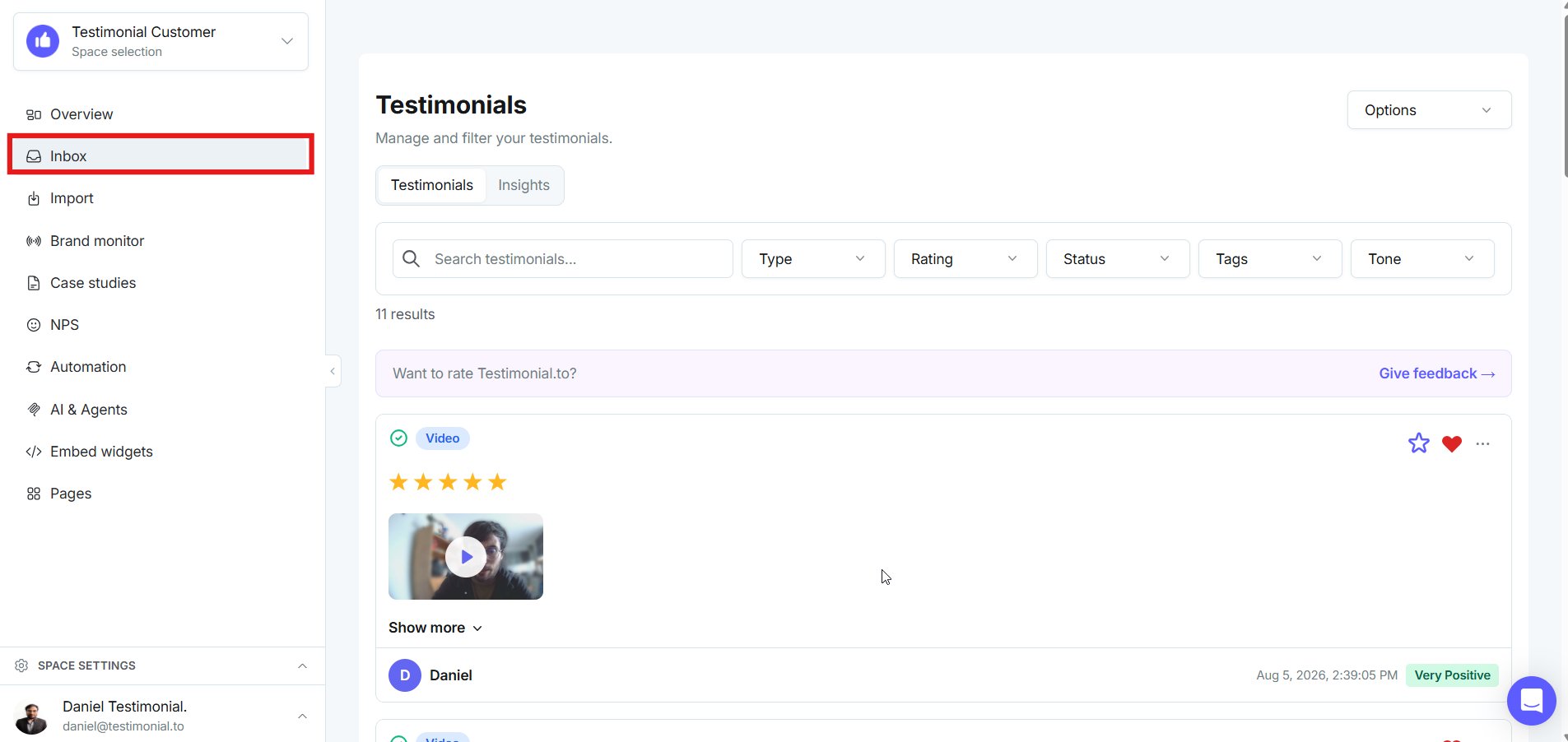
In the left sidebar, click Inbox.
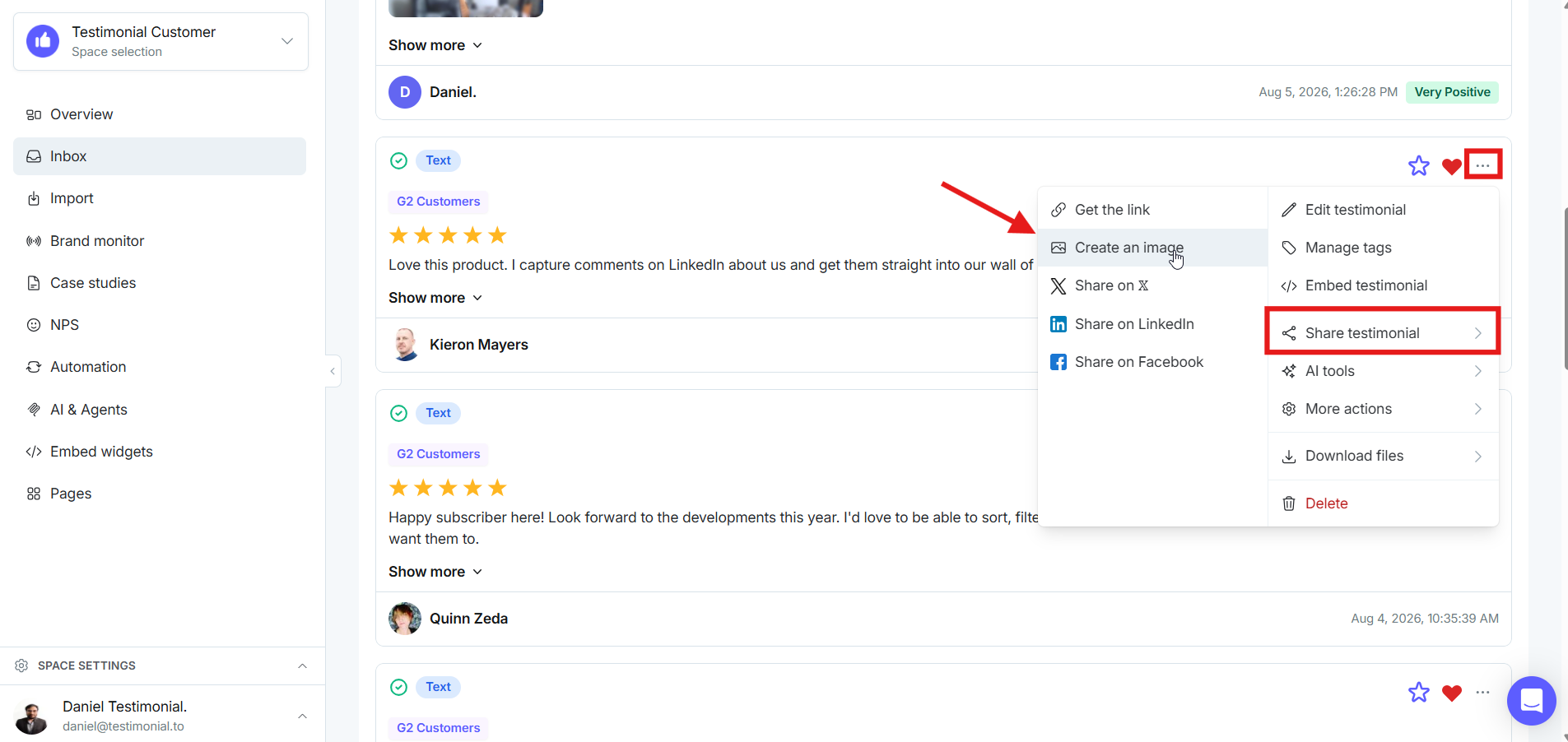
Select the testimonial. Click the three-dot menu, then click Share → Create an Image.
Customize the card
Dark theme: on or off
Card adjustment: left or centered
Ratio: Auto, X (formerly Twitter), LinkedIn, or Instagram Story
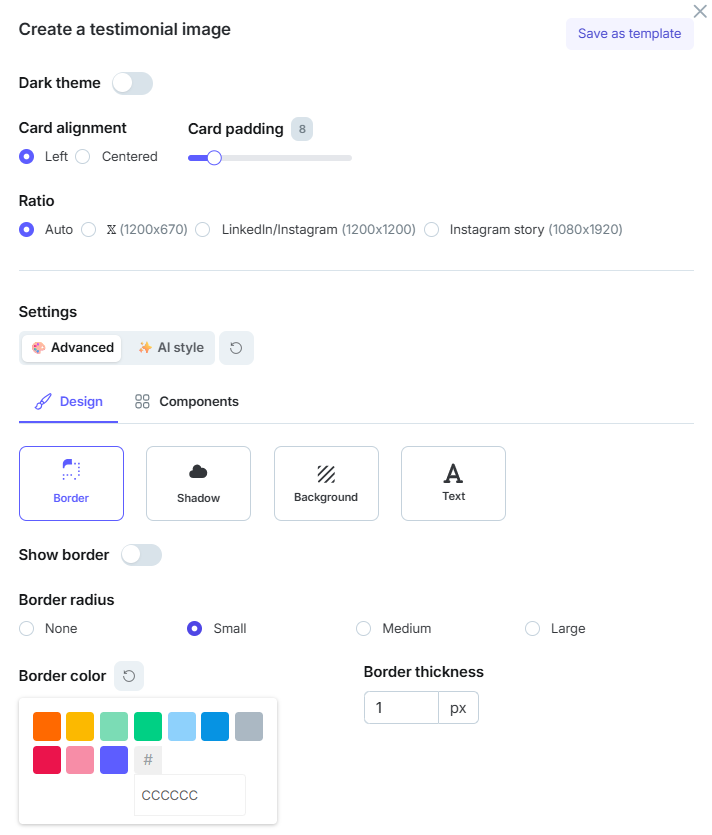
More settings:
Border: show border and border radius
Shadow: type, size, and color
Background: background color (gradient, solid, or transparent) and card background color (solid or transparent)
Text: text color, link color, font family, and heart color
Copy or download
After you edit the card, copy it to the clipboard and paste it into a text editor, or download a PNG.
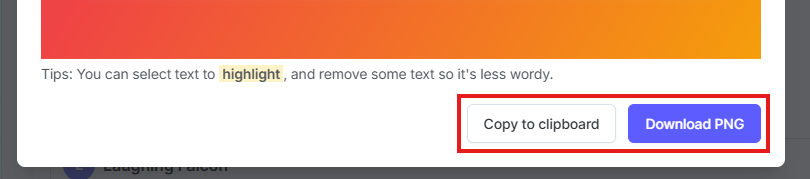
Sample PNG:

Need help? Click Talk to us to open the support chat. If the chat doesn't load, email support@testimonial.to.