
Import existing testimonials
Import existing video or text testimonials by hand, with the extension, from a third party, or from a CSV.
Import video or text testimonials you already collected outside Testimonial into a Space, then add them to your Wall of Love.
Add text or video manually
On the dashboard, open the Space.
Open the Options menu and choose Add a video or Add text.
On the Free plan, you may see a notice before the text is added. See Free plan text limit.
Import with the browser extension
The Testimonial browser extension can import testimonials from across the web. Use it for social shoutouts, or use Save text or Take a screenshot on review sites.
Walkthrough of the extension:
 Watch on YouTube
Import from a third party in the Space
You can import from sources such as Capterra, G2, and Google Reviews. See the full list in Import from third parties.
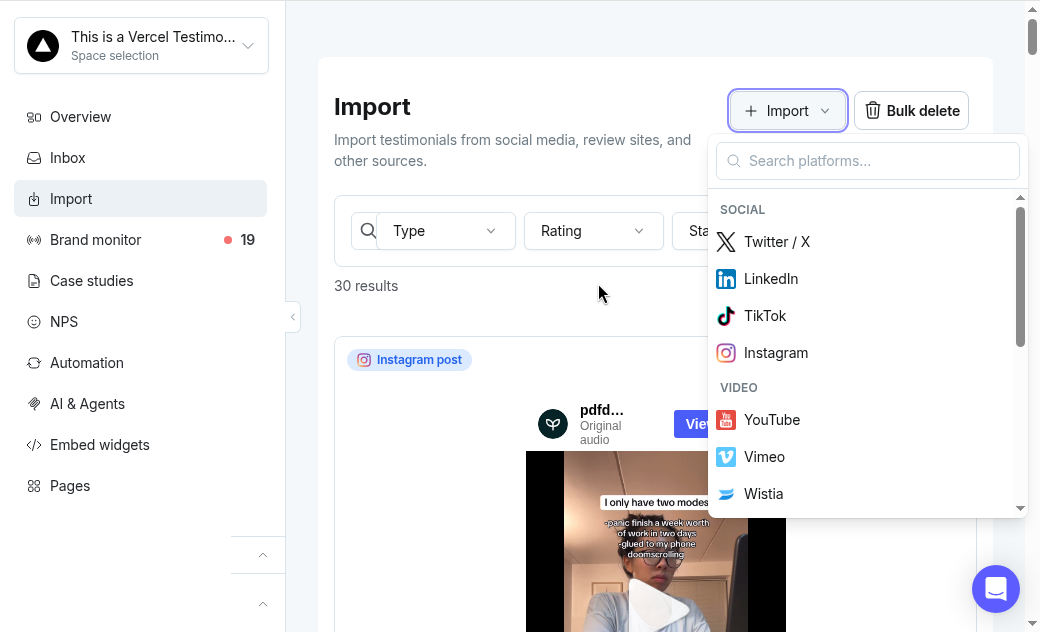
After you import, embed the reviews on your website:
 Watch on YouTube
Bulk import from a CSV
On Ultimate and Ultimate+, import testimonials from a CSV. Open the Space, click Options > Bulk Import, and download the template CSV.
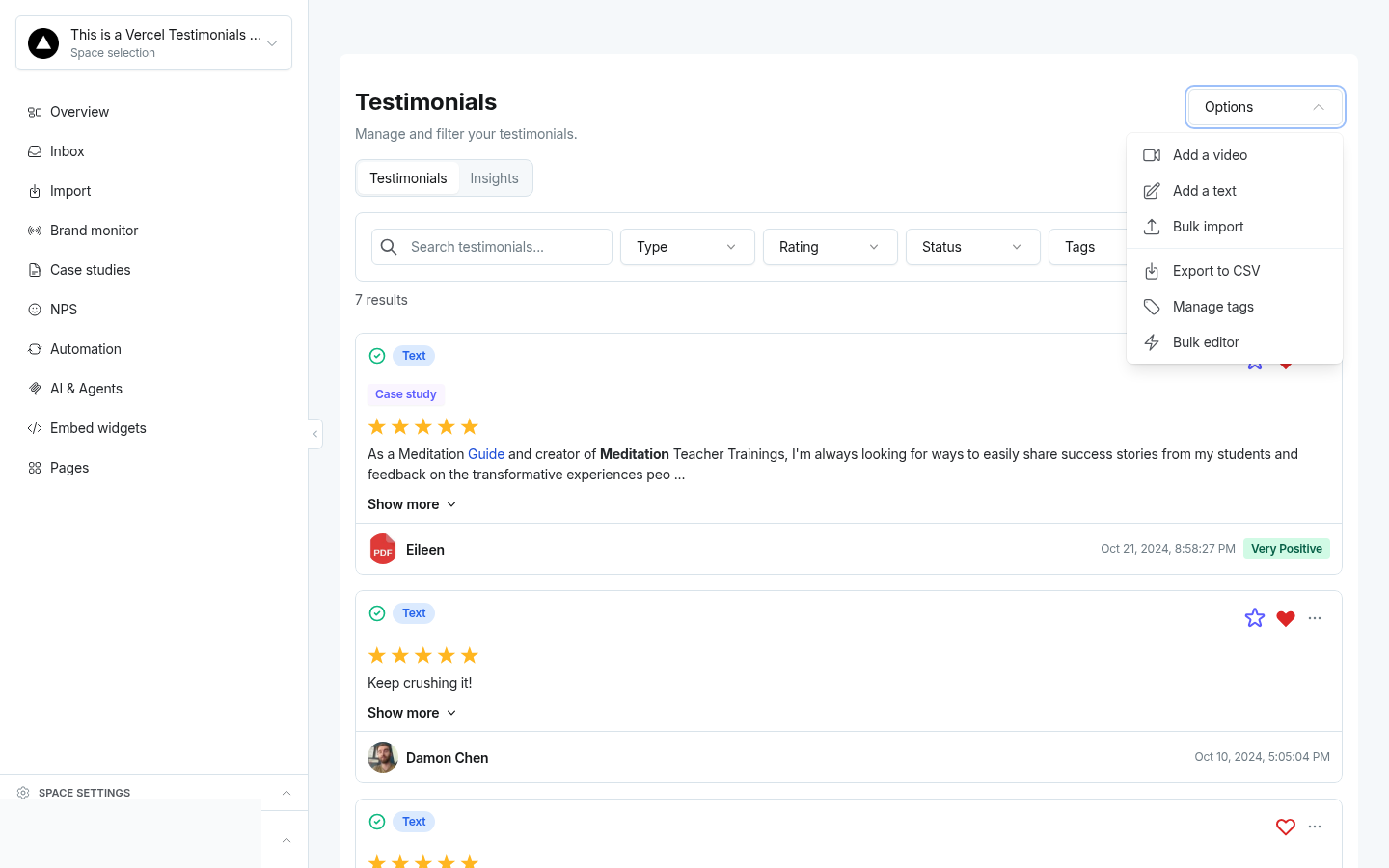
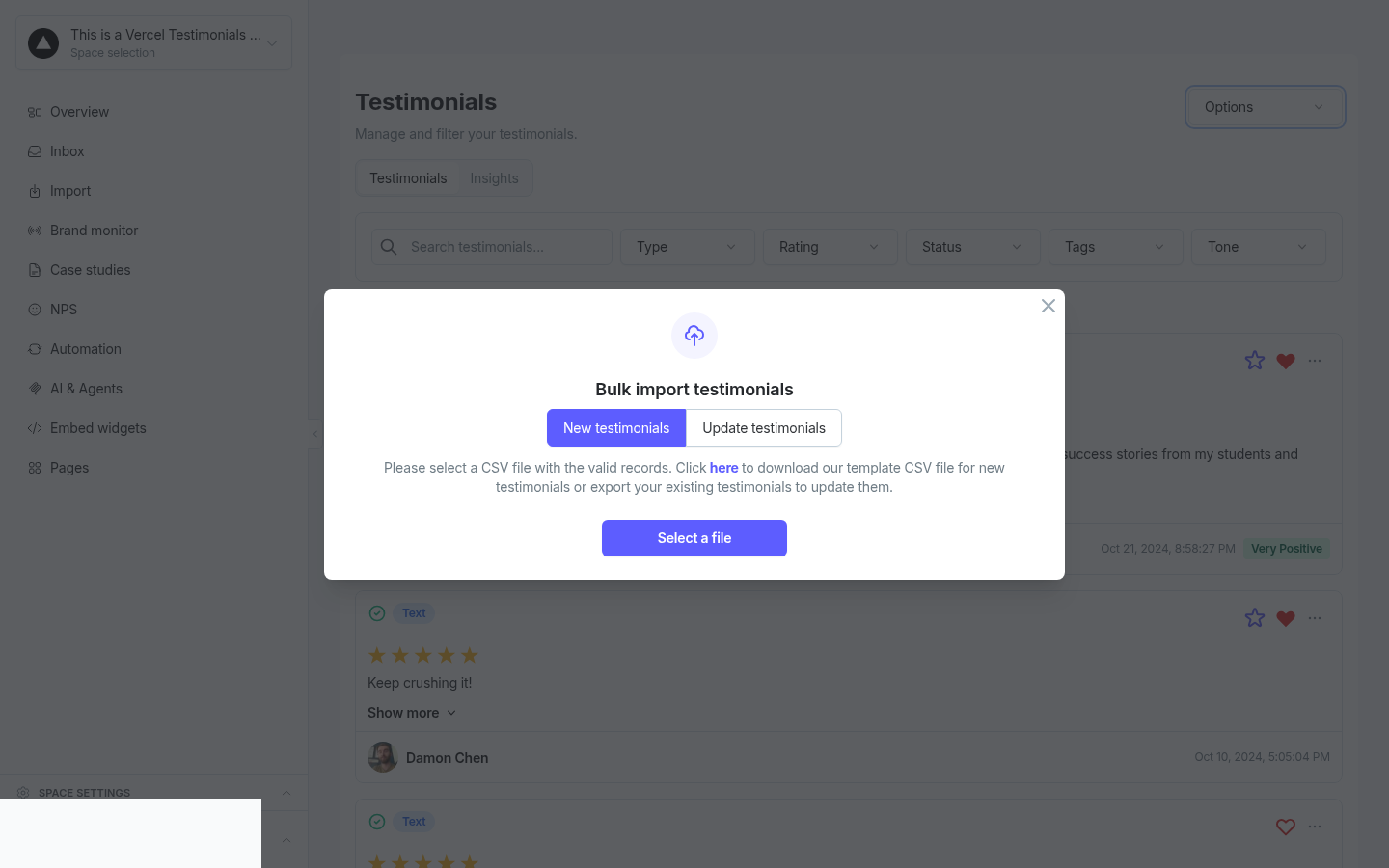
Turn your reviews into a CSV. The steps depend on the platform. See Amazon and Trustpilot.
Clean up the CSV so the header row matches the template fields.
Open the Space and import the CSV.
Choose whether to import one review or all reviews from the file.
Free plan text limit
On the Free plan, a Space can show 10 text testimonials. Text testimonials over that limit stay locked in your Inbox and don't show on your Wall of Love or embeds.
When you use Add text and the new testimonial would take the Space over the limit, you see a notice that reads "This goes over your free plan's text limit", with three choices:
Cancel — go back without adding anything.
Add it anyway — add it. Text testimonials over the limit stay locked.
Upgrade to unlock all — opens pricing in a new tab.
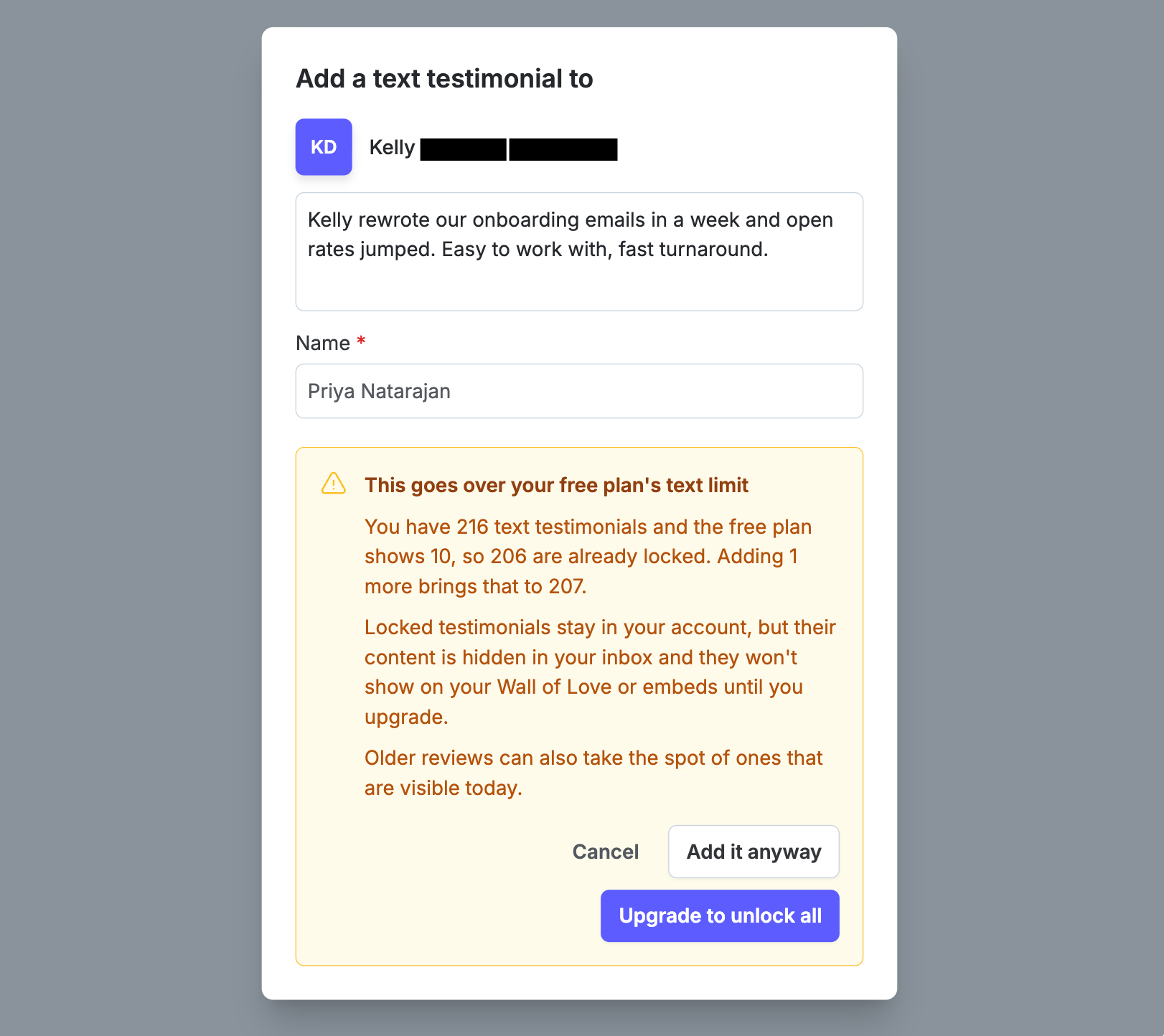
Paid plans don't see this notice.
Update existing testimonials from a CSV
Bulk-update testimonials you already have by editing a CSV and re-importing it. You do not need to upload everything again.
Export your current testimonials as a CSV from the dashboard.
Edit only the fields you want to change, such as name, testimonial text, rating, or tags.
Upload the updated file.
Select Update testimonials instead of creating new testimonials.
Select the fields to update. Fields you leave blank stay unchanged.
Note: Existing testimonials are updated, not duplicated. You do not need to fill every column when updating.
Need help? Click Talk to us to open the support chat. If the chat doesn't load, email support@testimonial.to.