
How to downgrade or cancel a plan
How to downgrade to a lower paid plan or switch to the free plan from Settings → Plan.
Changes to your subscription apply to your whole account, not a single space. You can do this from Settings → Plan.
On that page you will see your current plan, how many spaces you are using, and four cards: Free, Starter, Ultimate, and Ultimate+. Use Annual billing (2 months off) to compare yearly and monthly prices.
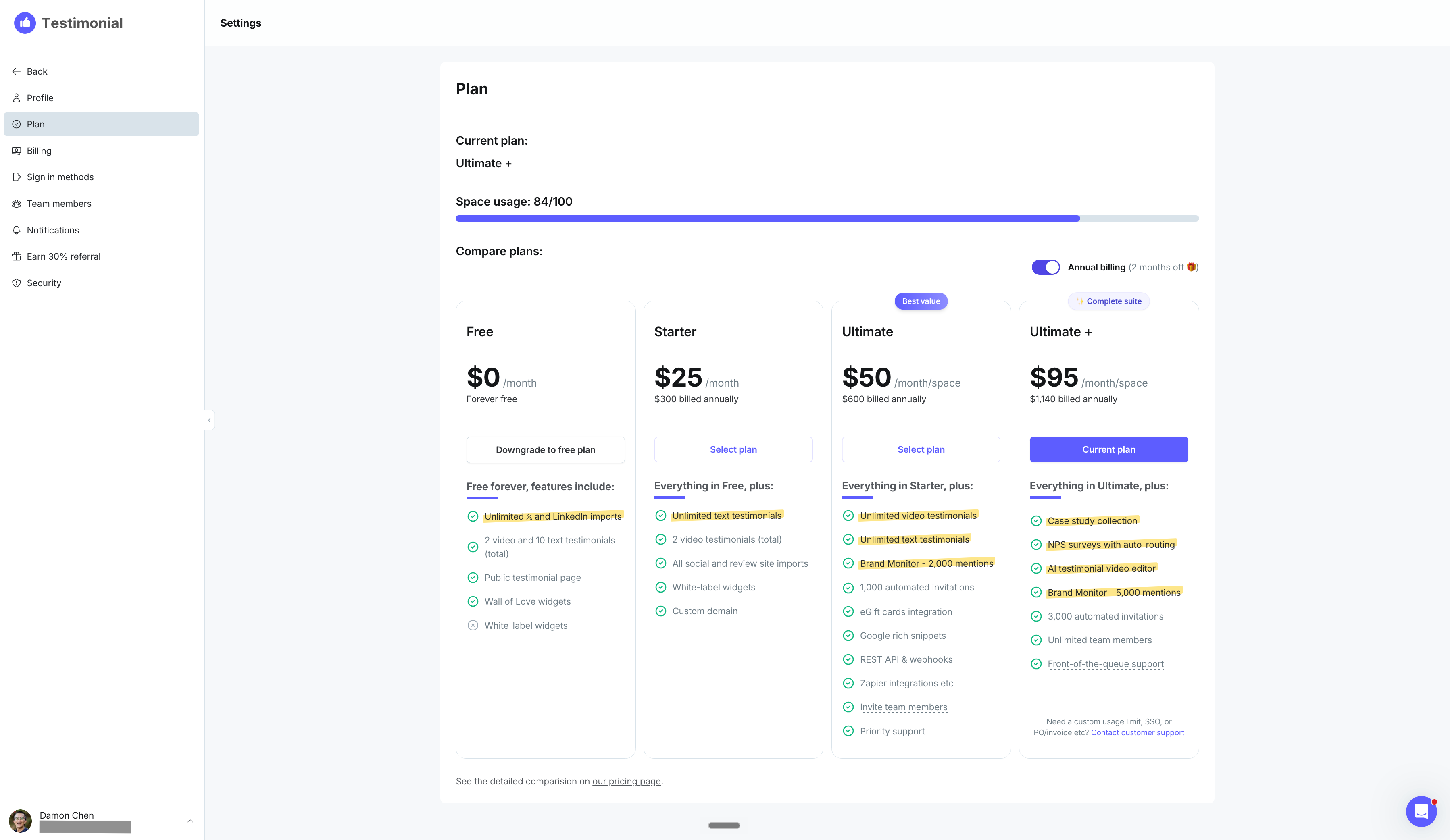
Downgrade to a lower paid plan
Open Settings → Plan.
On the plan you want (for example Starter or Ultimate), click Select plan.
A popup shows the prorated amount due today and the cost per billing cycle. Click Confirm if you want to proceed.
If the lower plan allows fewer spaces than you currently have, an inline Downgrade Gate lists your spaces. For each space you need to remove, click Delete and type the space ID to confirm. You can Undo before you commit. When you are ready, click Delete N spaces and continue (or Continue if you are already within the limit). Nothing is deleted until you continue. To abort without deleting anything, click Keep my plan or Close.
If you are over the video limit on the plan you are moving to, the same gate shows a link to your Wall of Love so you can trim videos, then Check again.
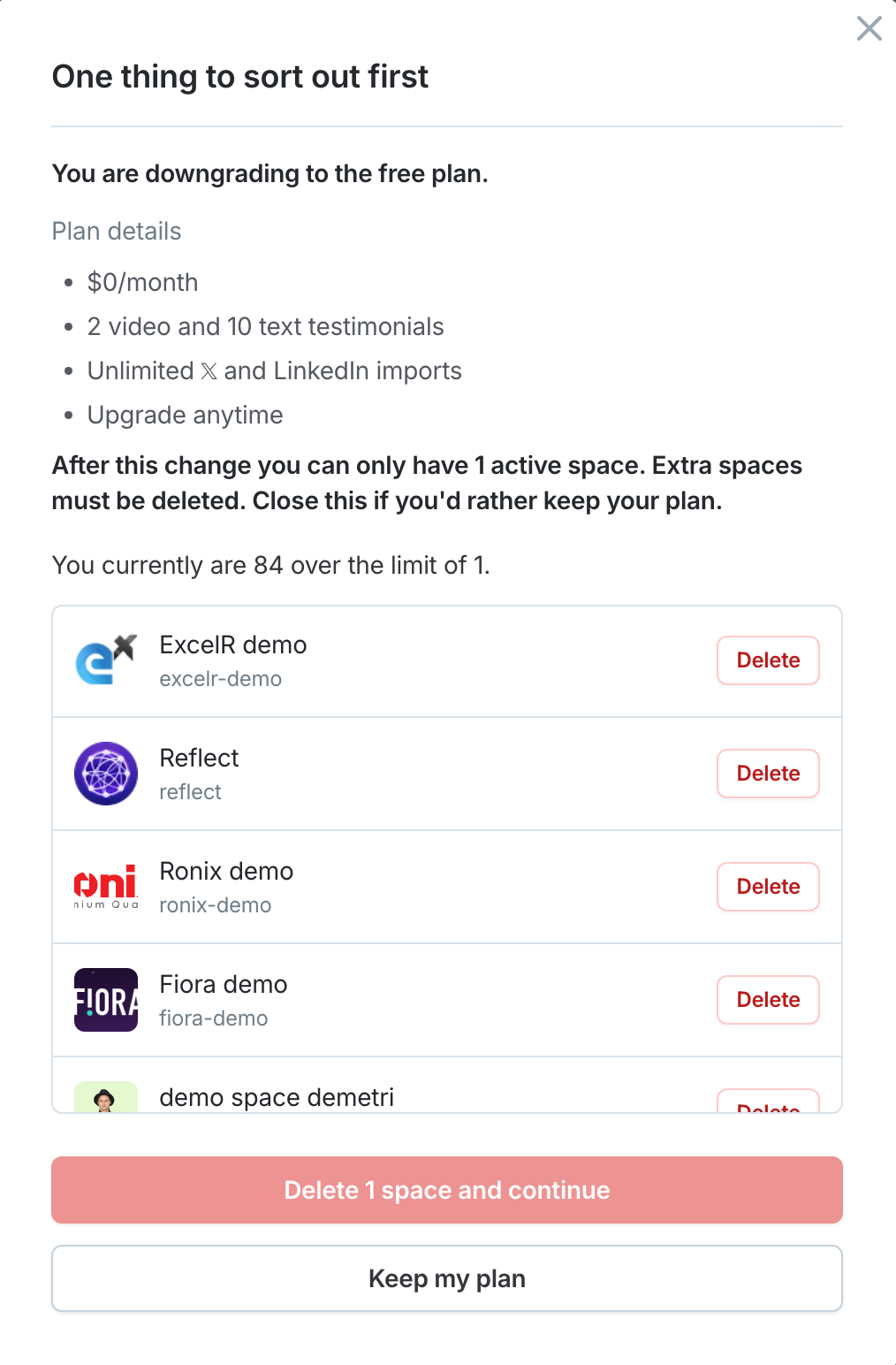
Cancel and switch to the free plan
Open Settings → Plan.
On the Free card, click Downgrade to free plan.
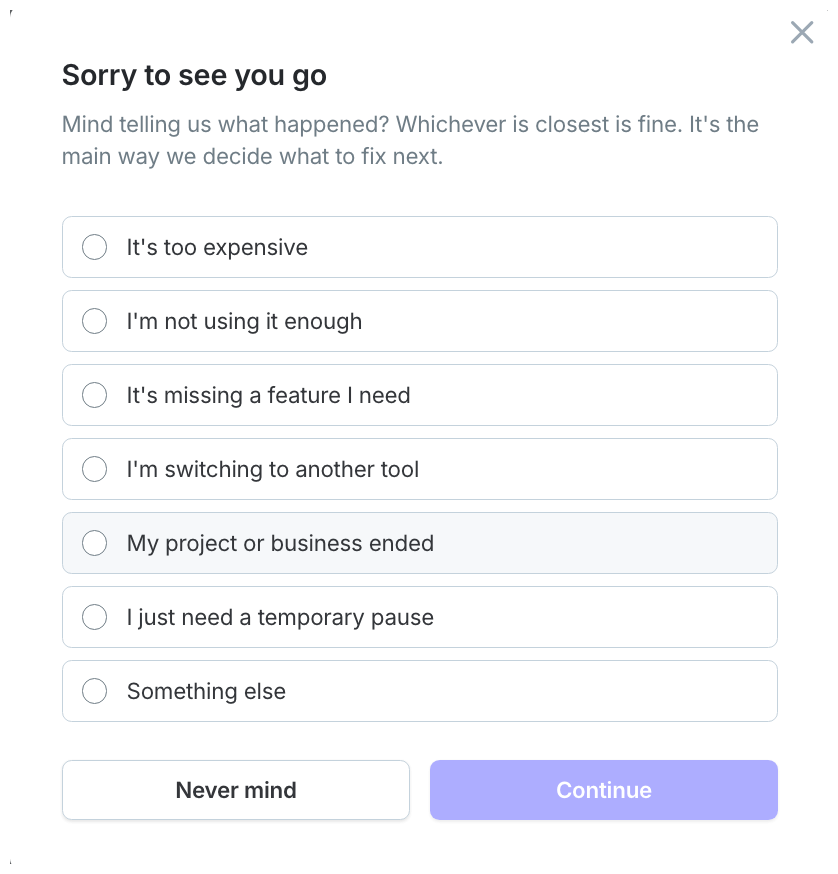
You will see Sorry to see you go. Pick the reason that is closest, then click Continue (or Never mind to stop). The options are:
It's too expensive
I'm not using it enough
It's missing a feature I need
I'm switching to another tool
My project or business ended
I just need a temporary pause
Something else
Under Confirm cancellation, you will see that your paid plan stays active until the end of your current billing period. Nothing is charged after that. You will also see the Free plan details: $0/month, 2 video / 10 text testimonials, unlimited X/LinkedIn imports, and upgrade anytime.
If you have more than 1 active space, you will be asked Which space should stay active after that? Pick the space you want to keep. The space with the most testimonials is selected for you. The free plan includes one active space, so your other spaces are disabled on the date your paid plan ends. They are not deleted, and you do not need to delete any spaces to cancel.
Anything above free limits stays visible for 14 days so you can export or trim before it is hidden. Click Cancel my plan to finish, or Keep my plan to stop.
Changed your mind? You can undo the cancellation from Settings → Plan any time before your paid plan ends.
Switch your active space on the free plan
After your paid plan ends, the spaces you did not keep show as disabled on your dashboard. A disabled space's collection page, Wall of Love, and embeds go offline. Its testimonials are kept.
To change which space is active, open the card menu on a disabled space and click Switch to this space, then click Switch. That space becomes your active space, and your current active space is disabled. You can switch back later.
On a paid plan, disabled spaces show the usual Activate the space option instead, or an upgrade prompt if you have reached your plan's space limit.
Need help? Click Talk to us to open the support chat. If the chat doesn't load, email support@testimonial.to.