
Collect the user’s consent
Require, make optional, or hide consent, and check whether a customer agreed.
The consent statement is required by default. Customers must agree before they submit if you plan to use the testimonial in marketing.
You can keep it required, make it optional, or hide it.

Consent display
You need a Space first. A Space holds your testimonials. See create a new space.
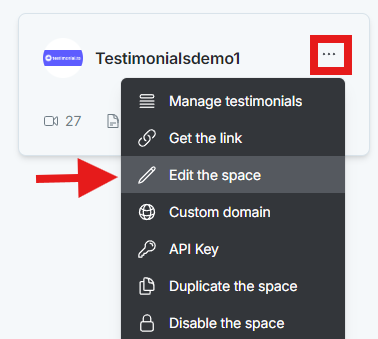
On the dashboard, click the three-dot menu on the Space card and choose Edit the space.
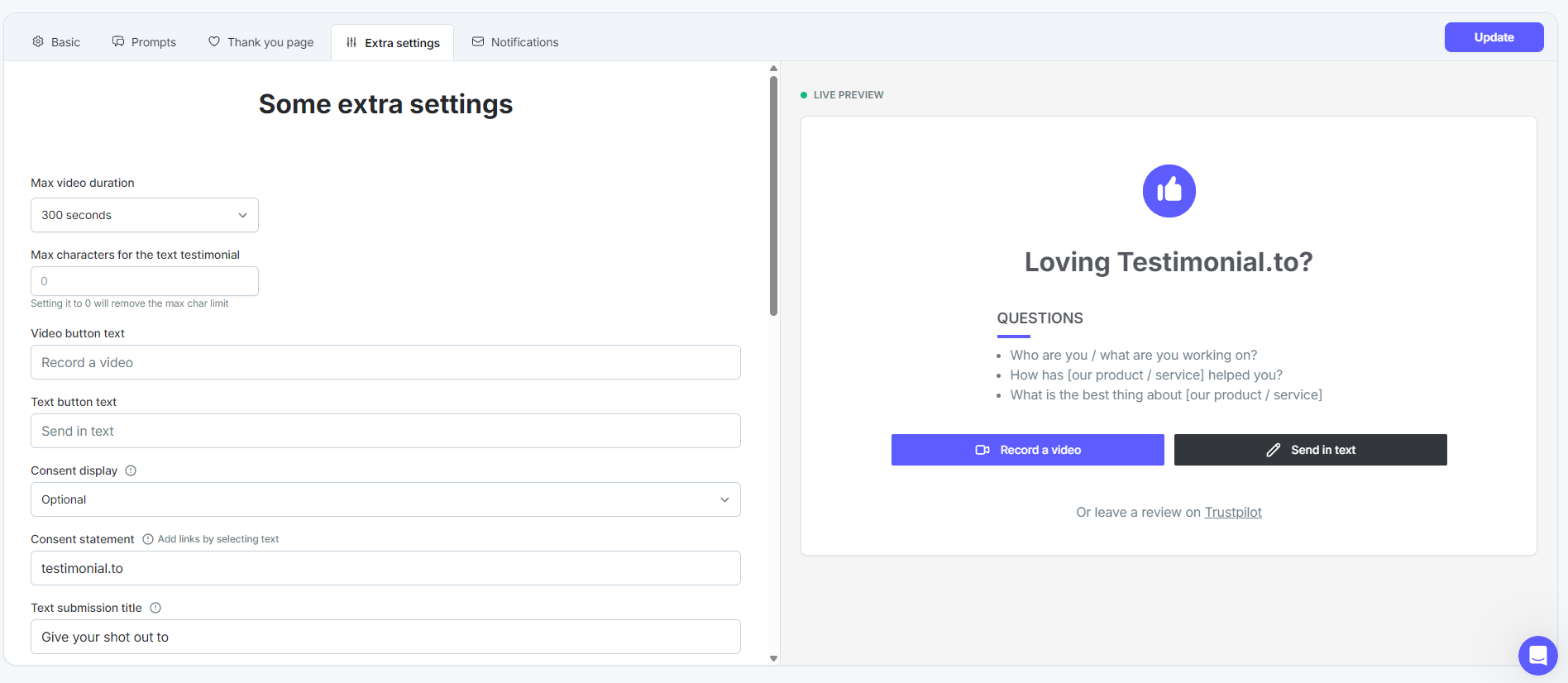
Click Extra Settings.
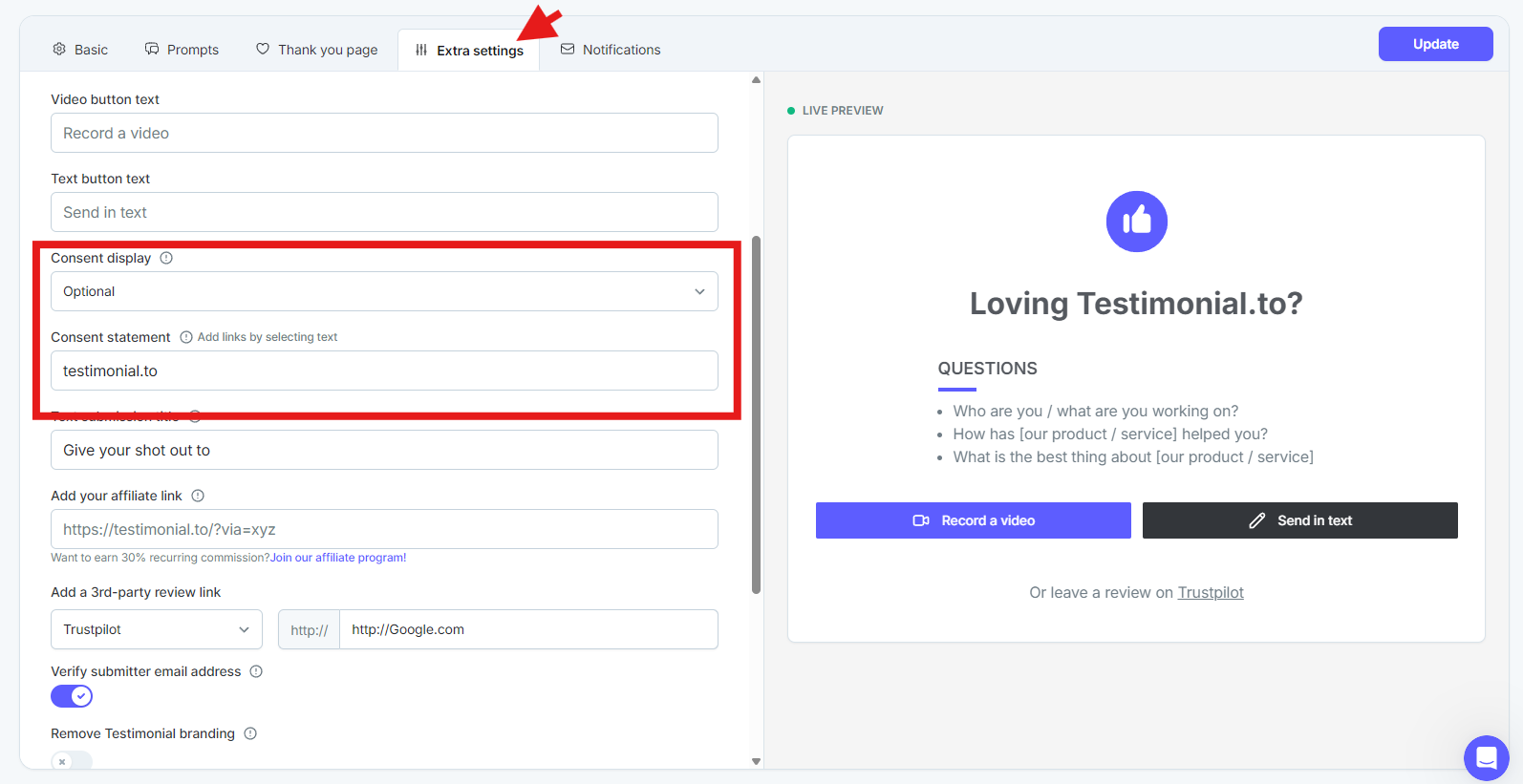
Change consent display to Required, Optional, or Hidden.
Save the changes.
Change the consent statement
The default statement is: I give permission to use this testimonial across social channels and other marketing efforts.
To change it, follow the steps above and edit the Consent Statement field.

To link to a longer terms page, highlight the words you want customers to click and paste the URL.
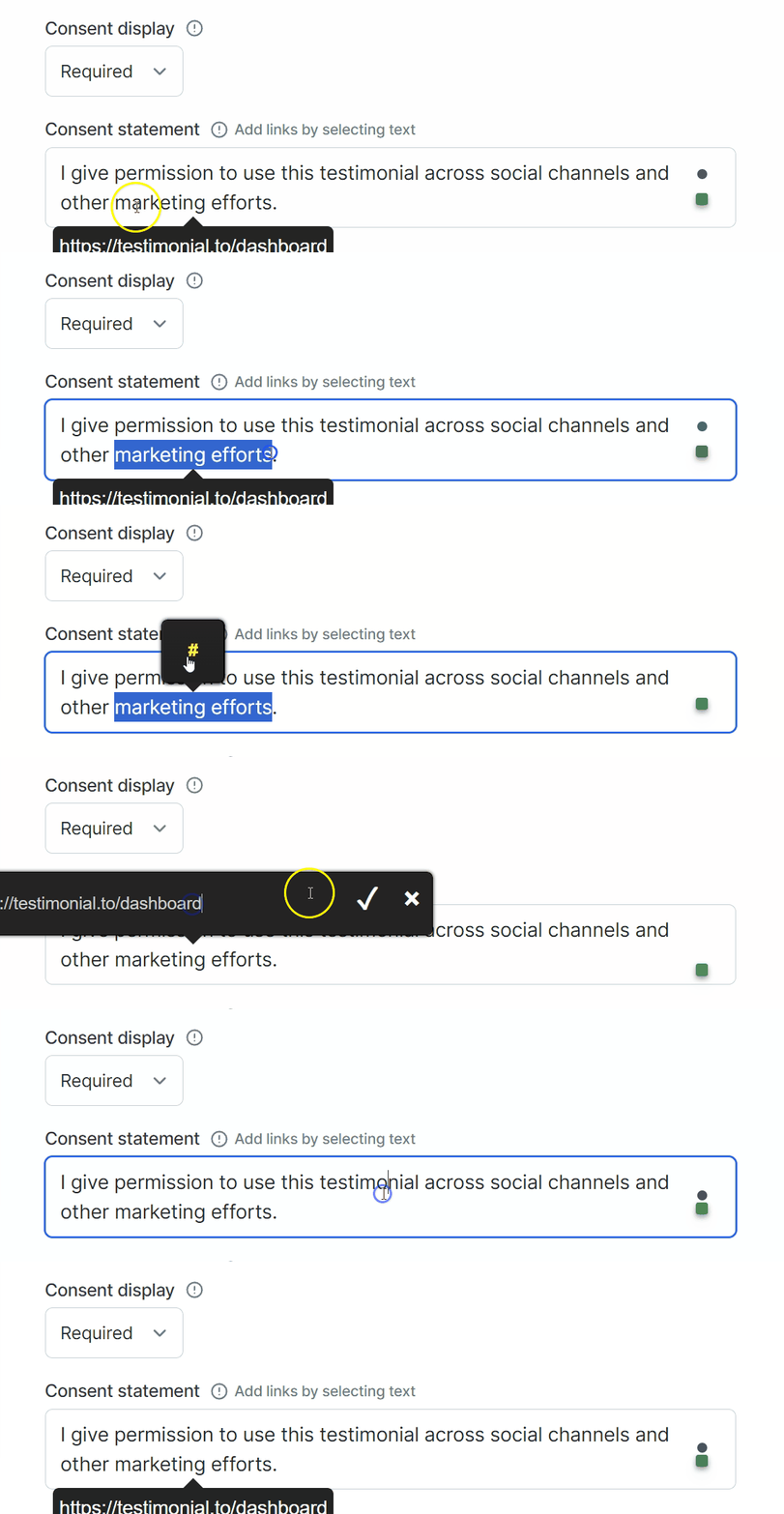
After you save, those words become a link to your consent page.
Changing the statement doesn't affect testimonials you already have. Each text and video testimonial submitted through your form saves its own consent record: whether consent was given, the exact statement the customer saw, the language, and when it was recorded.
Check a customer's consent
From the Space Inbox
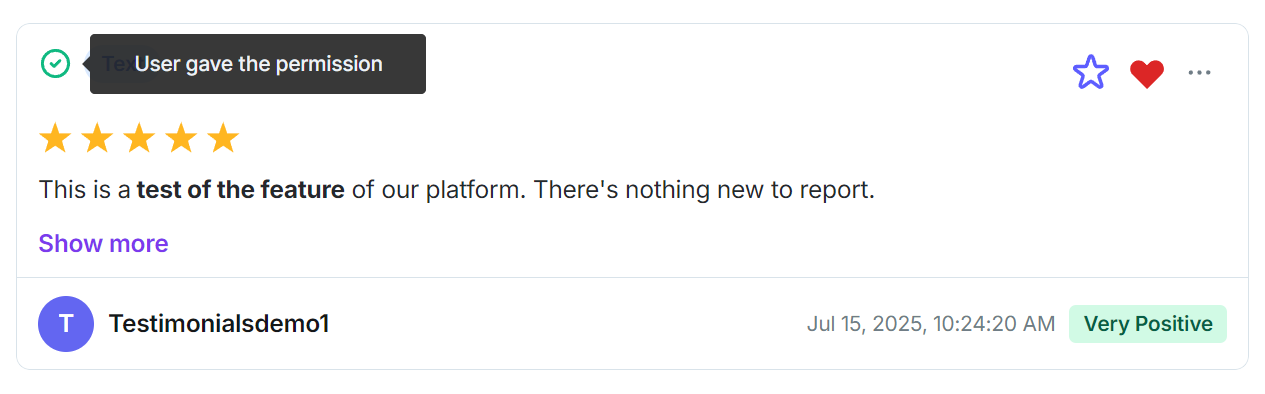
If consent is optional, the testimonial card shows a check icon or a blocked icon.

From the testimonial log
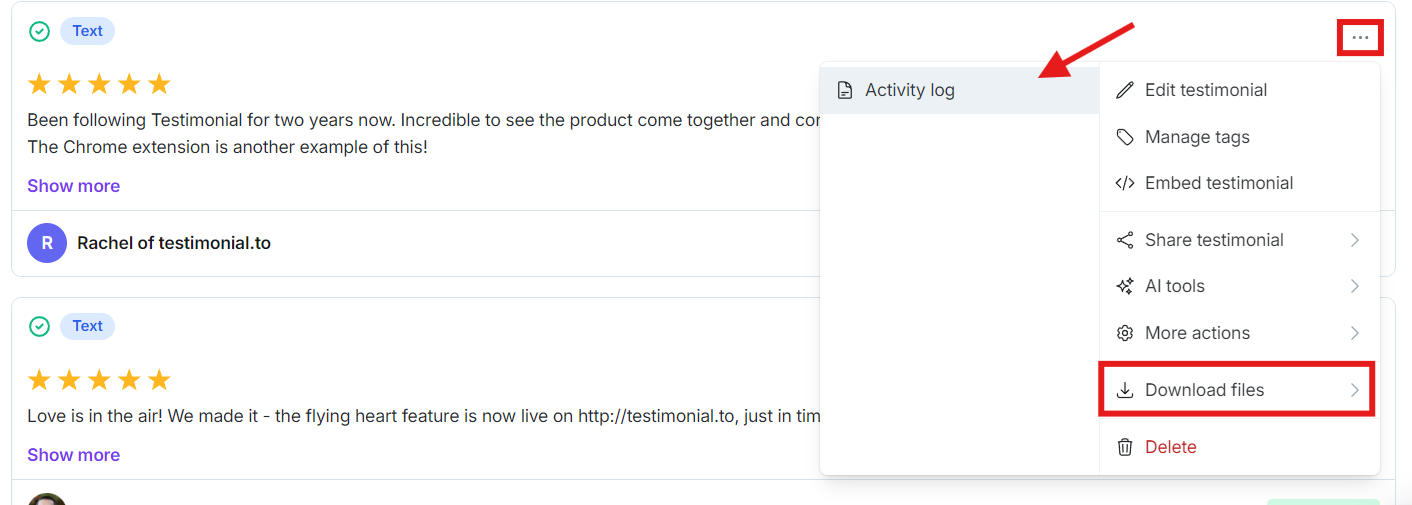
Download the testimonial log for one testimonial: on the testimonial card in your Space, click the ⋯ (More options) button, then Download files, then Activity log.
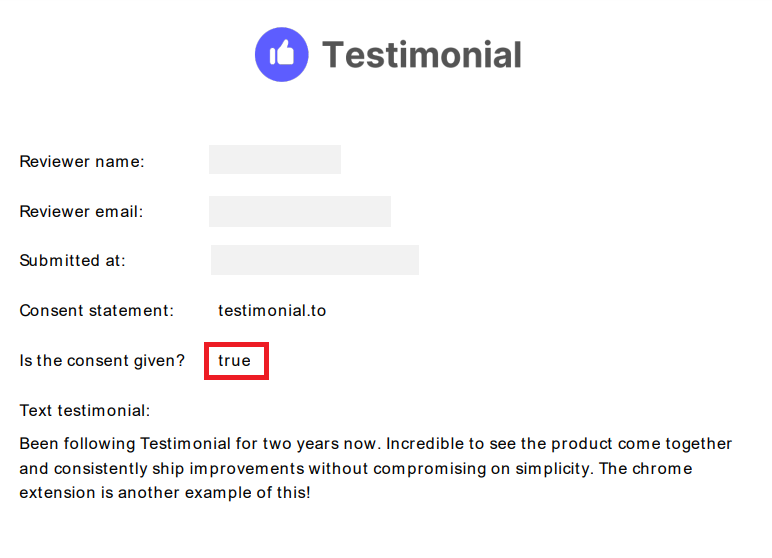
The PDF shows whether the customer gave consent, along with the consent statement they agreed to.
From a CSV export
The CSV export includes consent columns for each testimonial, including the consent statement text and when consent was recorded. See Export video and text testimonials.
Need help? Click Talk to us to open the support chat. If the chat doesn't load, email support@testimonial.to.